Render the reflection
In the Library > Composing > Composers use composers and render passes to set the rendering of your project. For example, by setting in a render pass the Object Source property you set which objects you want to render. By default Object Source property of a render pass is Root Object Source, which passes for rendering all objects in the project to the render pass.
To create reflections you need two render passes, one rendering the origin objects and the other rendering the reflections of the origin objects represented by the instantiator nodes you created in the previous step.
In the previous step you tagged the objects in your project. In this step you collect the tagged objects with two tag filters, and pass the tagged objects to the Object Source property of each of the render passes.
In this step you first create two tag filters: one to collect all origin objects (tagged Origin), the other to collect all instantiator nodes you use for reflections (tagged Reflection). Then you create two render passes: one to render all origin objects and the other to render all reflections.
- In the Library right-click Composing, select Create > Tag Filter and in the Properties set:
- Name to Origin
- Included Tags to Origin
- Excluded Tags to Reflection
This is the filter that collects the object for which you are creating a reflection.
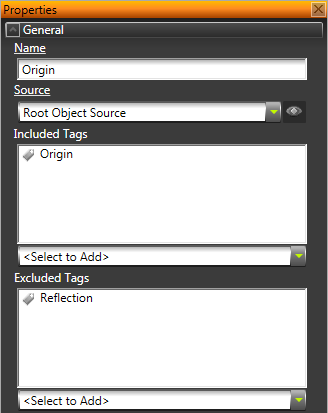
- In the Library right-click Composing, select Create > Tag Filter and in the Properties set:
- Name to Reflection
- Included Tags to Reflection
This is the filter that collects the instantiator node objects that make a reflection.
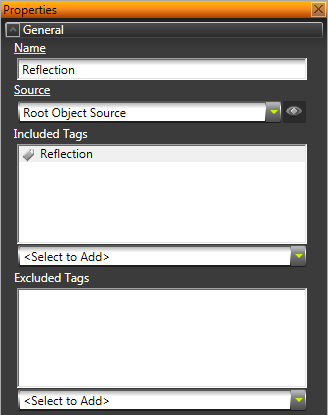
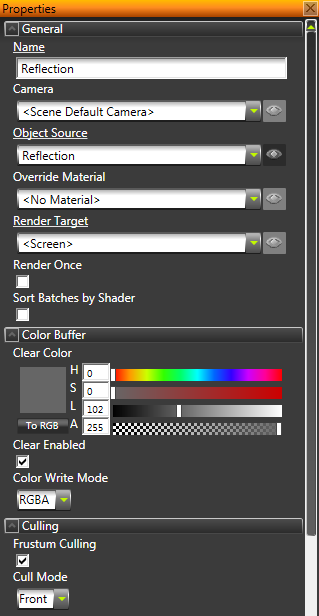
- In the Library select Composing > Composers > Composer > Render Pass and in the Properties set:
- Name to Reflection
- Object Source to the Reflection tag filter, which collects the reflection objects
- Enable the Clear Enabled property
- Cull Mode to Front
This way you create a render pass that renders the reflection.
- In the Library right-click Composing > Composers > Composer, select Create > Render Pass and in the Properties set:
- Name to Origin
- Object Source to the Origin tag filter, which collects the origin objects
- Disable the Clear Enabled property
- Cull Mode to Back
This way you create a render pass that renders the origin objects.
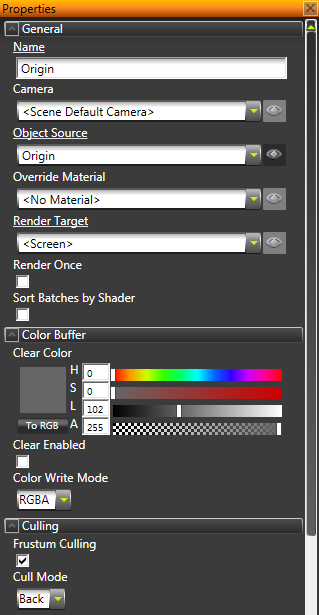
Always place the render pass that renders origin objects below the render pass that renders reflections.
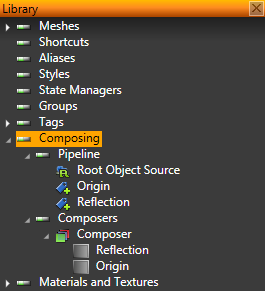
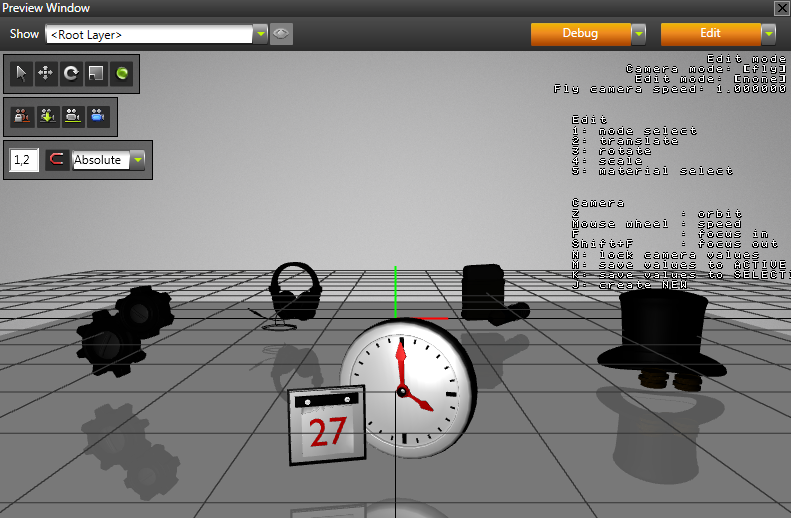
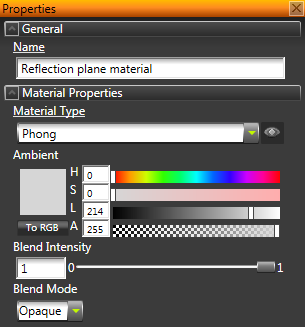
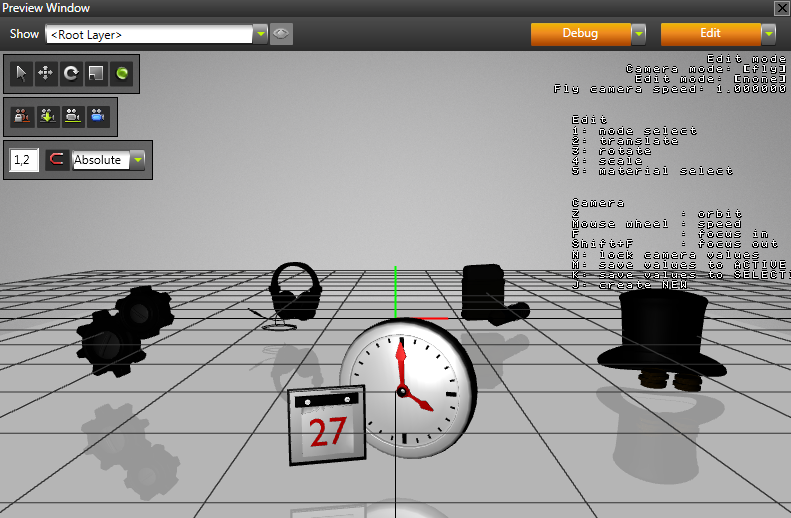
- (Optional) In the Library > Materials and Textures > Materials select the material you use for the reflection plane, and in the Properties adjust the material properties until you get the reflection plane you want.
For example, to make the reflection plane blend with the background, adjust the Ambient Color property.
< PREVIOUS STEP
What's next?
In this tutorial you learned how to create reflections in Kanzi Studio. Now you can:
See also
To learn more about creating Kanzi applications, see Tutorials.
To find out more about Kanzi Studio features, see Working with ....
To find out more about how to use tag filters, see Using tag filters.
To find out more about filters, see Filters.
To find out more about rendering in Kanzi Studio, see Rendering.
Open topic with navigation